How to Make AI Images (Beginner Guide)
Learn how to make AI images from scratch — write a prompt, pick a style, and export a finished picture in seconds.
June 16, 2026
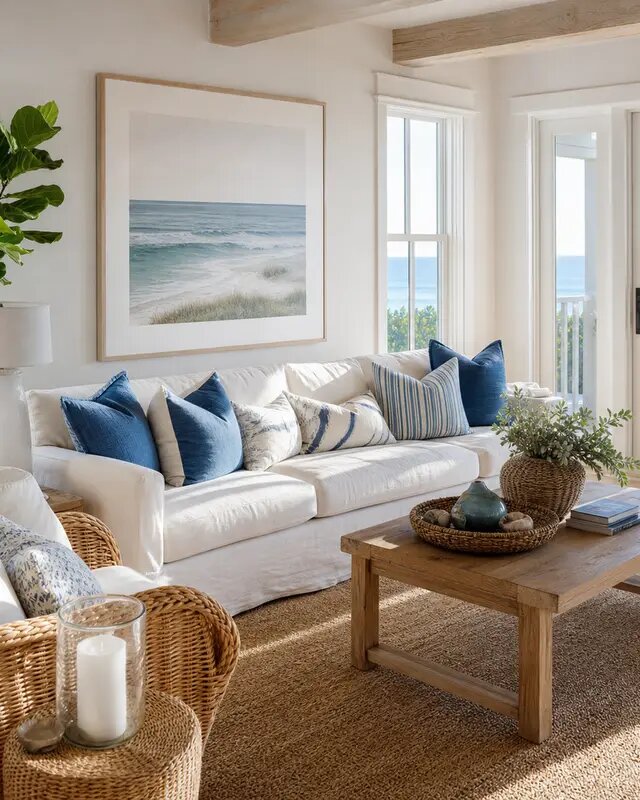
Making an AI image means describing a picture in words and letting a generative model render it for you. With a tool like eaxy you type a prompt, choose a style, and get a finished image in seconds — no camera, no Photoshop, no design background needed.
What is an AI image, exactly?
An AI image is a picture created by a text-to-image model. You give the model a description (the "prompt"), and it produces an original image that matches it. Modern diffusion models can render photorealistic photos, painterly illustrations, 3D-looking product shots, anime, posters and more — all from the same text box.
The important mental shift for beginners: you are not searching for an existing image. You are describing one that has never existed, and the model builds it pixel by pixel. That means the more clearly you describe it, the closer the result lands.
The fastest way to get started
You can make your first usable image in under a minute:
- Open the create studio and start a new image.
- Type a simple prompt: subject + setting. Example: "a golden retriever puppy sitting on a wooden porch at sunset."
- Pick a style pack — for this example, "cinematic" or "portrait."
- Choose an aspect ratio (square for social, wide for a banner).
- Generate, then create 2-3 variations and keep your favorite.
- Export at the resolution you need.
That's the whole loop. Everything else is refinement. When you're ready, start creating and run a few prompts to build intuition.
Anatomy of a good prompt
The single biggest jump in quality comes from adding detail in the right categories. A strong prompt usually covers:
- Subject — who or what is in the frame ("a ceramic coffee mug," "a woman in a red coat").
- Setting — where it is ("on a marble kitchen counter," "in a foggy forest").
- Lighting — the mood-maker ("soft morning light," "dramatic side lighting," "neon glow").
- Composition — the framing ("close-up," "wide shot," "top-down flat lay").
- Style — the look ("photorealistic," "watercolor," "studio product photo").
Put together: "Close-up photorealistic shot of a ceramic coffee mug on a marble counter, soft morning light from the left, shallow depth of field." That reads like a tiny photography brief — and that's the point. For a deeper dive, see the AI image prompting guide.
Choosing the right style
Style packs are shortcuts. Instead of typing a long technical description of a camera, lens and film stock, you pick a curated style and the model applies a coherent look. eaxy ships 30+ packs covering portrait, product, cinematic, anime, interior, fashion and social.
A few quick rules of thumb:
- Use portrait for people and headshots.
- Use product for clean ecommerce shots on plain backgrounds.
- Use cinematic for moody, film-like scenes with rich color.
- Use anime or illustration when you want a drawn look, not a photo.
If your first result feels generic, swapping the style often fixes it faster than rewriting the prompt. See best AI image styles in 2026 for a tour of what each one is good at.
Iterating like a pro
Your first generation is a draft, not a final. The fastest creators treat it as a conversation:
- Keep what works, change one thing. If the composition is right but the lighting is flat, only adjust the lighting words.
- Generate in batches. Three variations give you choices and reveal what the model "wants" to do with your prompt.
- Lock the look. Once you find a style and lighting combo you like, reuse it across images for a consistent feel.
- Upscale at the end. Get the composition right first, then export at 4K for print or large screens.
Common beginner mistakes
- Writing one-word prompts and expecting magic. "Dog" gives the model nothing to work with.
- Cramming twenty competing ideas into one prompt. Pick one clear scene.
- Ignoring aspect ratio, then cropping awkwardly later. Choose the shape up front.
- Stopping at the first image. Variations are free attempts — use them.
Where to go next
Once you can reliably make a single good image, the natural next steps are bringing it to life and getting more deliberate with prompts. You can turn any still into motion — see how to turn a photo into a video with AI — or sharpen your prompting with the prompting guide. When you're ready to make your own, start creating with eaxy.
Frequently asked questions
Do I need any design or art skills to make AI images?+
No. You describe what you want in plain language and the model generates the image. Picking a style pack does most of the visual heavy lifting for you.
How long does it take to generate one image?+
Usually a few seconds. You can generate several variations of the same prompt and keep the one you like best.
What makes an AI image look bad versus good?+
Vague prompts and the wrong style. Add a subject, a setting, lighting and a style, and your results improve immediately.
Can I use the images I make commercially?+
Yes — on Pro and above, exports come with a commercial license and resolutions up to 4K.
Is there a free version?+
eaxy is paid-only with plans from Starter to Ultra, and you can cancel anytime.
Make it with eaxy
Describe anything and generate stunning images in seconds — then bring them to motion with Kling 3.