AI Background Generator
Generate clean backdrops, atmospheric scenes and product-ready backgrounds in seconds — just describe what you want.
June 16, 2026
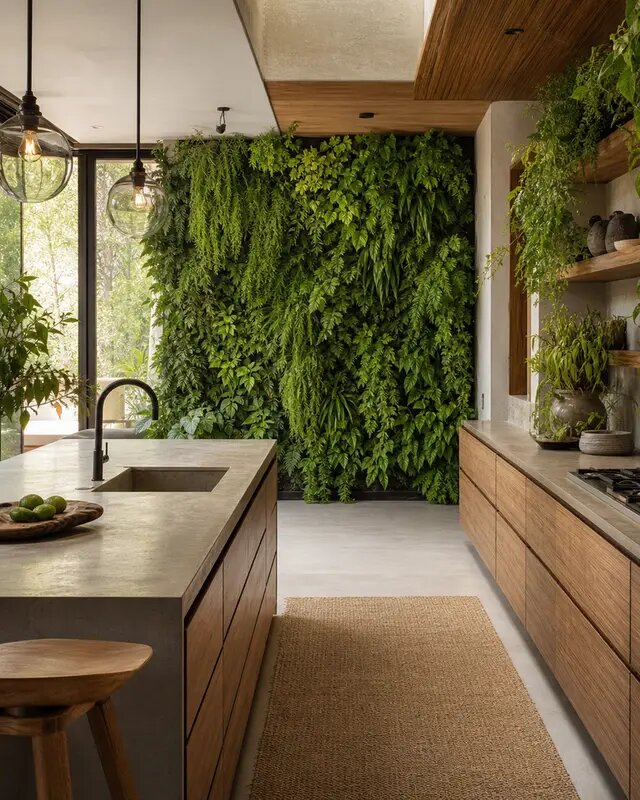
An AI background generator turns a short text prompt into a custom backdrop or full scene — from a plain studio sweep to a moody cinematic environment. With eaxy you describe the look you want, pick a style, and get usable backgrounds in seconds without a photo studio or stock-photo subscription.
What an AI background generator does
Instead of hunting through stock libraries for a backdrop that almost fits, you describe exactly what you need and the model builds it. That makes it easy to get a background nobody else is using, matched to your colors, mood and aspect ratio.
Common things people generate:
- Seamless studio backdrops in any color for products and portraits
- Soft gradients and abstract textures for slides and social posts
- Interior rooms and lifestyle settings for product staging
- Outdoor and natural environments — beaches, forests, city streets
- Cinematic and fantasy scenes for thumbnails, posters and key art
Because every background starts from your words, you control the lighting direction, color temperature, depth and clutter level. Want a softly lit warm beige sweep with a gentle shadow gradient? Describe it and generate a few options.
How eaxy makes backgrounds
eaxy pairs state-of-the-art diffusion models with 30+ curated style packs, so you are not starting from a blank slate. Choose a product, portrait, interior or cinematic pack and your prompt is steered toward that aesthetic automatically.
Key things that help:
- Style packs keep results consistent across a whole batch — useful when you need ten backdrops in the same look.
- 4K exports mean a background holds up on a large screen, a printed banner or a zoomed-in product page.
- Multilingual prompting lets you describe the scene in your own language.
- Motion with Kling 3 turns any still background into a short video — drifting fog, moving water, or a slow push-in — for hero sections and reels.
If you are also creating the subject, start with the AI image generator or explore text-to-image basics first, then generate matching backgrounds in the same style pack.
Step-by-step: generate a background
- Open eaxy and go to the create studio.
- Pick a style pack that matches your goal — product, interior, cinematic or abstract.
- Write a prompt describing the scene, colors, lighting and mood.
- Set the aspect ratio (square for social, wide for banners, vertical for stories).
- Generate a batch, compare options, and refine the prompt to dial it in.
- Export at up to 4K — or send your favorite into video to add subtle motion.
Start creating with eaxy to make your first background.
Use cases that work well
- E-commerce: swap a messy real-world background for a clean studio sweep so the product stands out.
- Social media: generate on-brand gradients and textures for quote cards, carousels and ads.
- Presentations: build section dividers and title slides that feel custom instead of templated.
- Websites: create hero and section backgrounds at 4K, then animate the hero with Kling 3.
- Thumbnails and posters: generate dramatic scenes to sit behind a subject or headline.
Tips for better backgrounds
- Be specific about lighting: "soft top-left key light, gentle falloff" beats "nice lighting."
- Name the surface and material — matte paper, polished concrete, brushed linen.
- State the color in plain terms or with a reference, and mention the mood.
- Leave negative space where your subject or text will sit.
- Generate several variations; small prompt tweaks produce meaningfully different results.
Matching backgrounds to your subject
The best backgrounds are designed around what sits in front of them. If your subject is a small product, keep the backdrop simple and let the lighting do the work. If it is a person or a hero illustration, a richer environment can add story without competing for attention. A few rules of thumb help:
- Match the light direction in the background to the light on your subject, or the composite will look pasted together.
- Echo one or two colors from the subject in the background so the image feels intentional.
- Keep depth-of-field consistent — a sharp subject usually wants a slightly softer background.
- Reserve a quiet zone where text or a logo can live without clutter behind it.
Because eaxy lets you batch-generate within a single style pack, you can produce a coordinated set — a clean version for product shots, a moodier version for a hero banner, and a textured version for social — all sharing the same visual DNA.
From still to motion
A background does not have to stay still. With Kling 3 you can animate a generated scene from any angle — a slow push-in on a landscape, drifting particles across an abstract texture, or gentle parallax on a layered environment. That turns a static hero into a living section header or a short looping reel background, without filming anything. Try the image-to-video flow to bring a finished backdrop to life.
Once you have a backdrop you like, keep the same style pack to stage products, then explore AI product photography to composite a subject onto the scene. When you are ready to move, open eaxy and generate a full set of backgrounds in one sitting.
Frequently asked questions
What kinds of backgrounds can I make?+
Solid color studio backdrops, soft gradients, textured surfaces, interior rooms, outdoor environments, abstract art and cinematic scenes — anything you can describe in a prompt.
Can I make a transparent or plain background for a product?+
Yes. Describe a clean seamless studio backdrop or a flat color, and use a style pack tuned for product work to keep the surface even and distraction-free.
What resolution are the backgrounds?+
You can export up to 4K, which is large enough for websites, presentations, print and high-resolution product listings.
Can I match a background to my brand colors?+
Yes — name your exact colors and mood in the prompt, then generate variations until the palette fits your brand.
Can I turn a background into a moving scene?+
Yes. Any still background can be animated with Kling 3 to add drifting clouds, flowing water, parallax depth or subtle camera motion.
Make it with eaxy
Describe anything and generate stunning images in seconds — then bring them to motion with Kling 3.